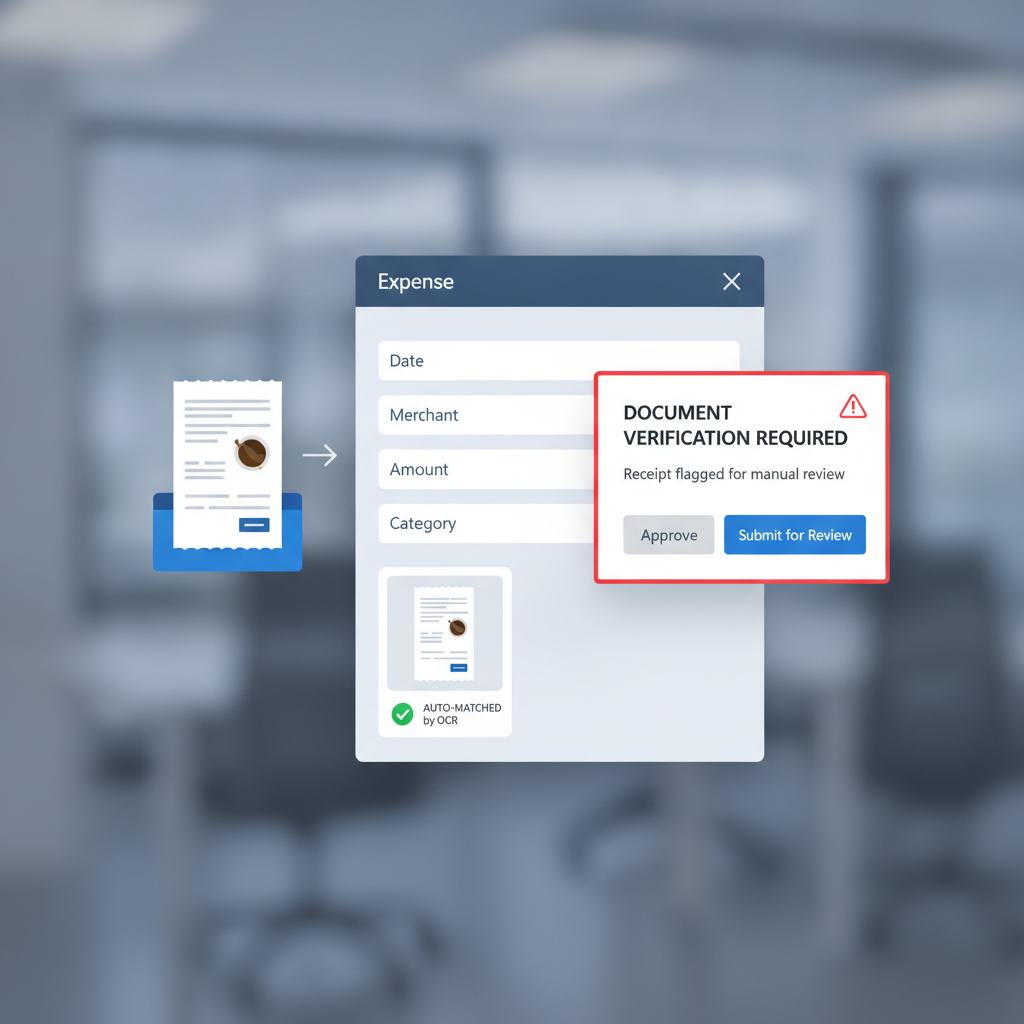
Receipt OCR usually feels like a trust signal.
The system extracts the merchant, date, and amount. It suggests a match to an expense line. The report looks cleaner. The approver has less manual work to do.
That is real operational value. It is also where many ERP teams start to blur two different jobs together.
The control gap: a receipt that extracts cleanly and matches neatly can still be a forged, edited, or synthetic file. OCR matching is workflow automation. It is not document authenticity verification.
Why This Angle Matters
Microsoft’s current Dynamics 365 documentation is clear about what the expense OCR flow is built to do. The platform can extract the merchant name, date, and total amount from receipts. It can also try to match unattached receipts to unattached expense transactions, or create a manually entered expense from the extracted fields.
Microsoft also documents mobile receipt capture, upload, and attachment inside the expense workflow. That is exactly how a modern finance system should behave if the goal is speed.
But notice what is missing from that promise: none of those steps answers whether the uploaded receipt itself deserves trust before the workflow starts acting on it.
What OCR Matching Actually Does Well
Receipt OCR matching is useful because it reduces clerical work:
- extract merchant, date, and amount from the uploaded receipt
- suggest or perform a match against an expense transaction
- help the employee create a cleaner expense line
- speed up reviewer context before approval
That is the right tool for reducing friction in reimbursement workflows.
It is not the right tool for deciding whether the source document was edited before upload.
Why Matching Can Mislead Reviewers
The dangerous case is not the obviously bad upload. It is the one that looks operationally normal:
- the receipt image is present
- OCR extracts the fields successfully
- the extracted amount fits the expense line
- the system offers a confident match
- the approver sees a tidy, complete packet
Once those conditions are true, the workflow starts to feel self-validating. The match itself becomes a kind of psychological proof that the receipt must be legitimate.
But a manipulated receipt can still match a manipulated or manually-entered claim. A fake file can still be internally consistent enough for extraction logic to process it correctly.
That is the core mistake: treating successful extraction and successful trust as the same event.
A Simple Dynamics 365 Failure Mode
An employee uploads a meal receipt image. The total has been edited before upload, but the rest of the receipt looks ordinary.
- Dynamics 365 OCR reads the merchant, date, and total.
- The system matches the receipt to the expense line or helps create one from the extracted values.
- The report looks complete because the attachment, fields, and line item all agree.
- The manager or AP reviewer approves based on policy fit and context.
Nothing in that sequence proves the uploaded file was genuine. It only proves the file was readable and coherent enough for the workflow to use.
Where Verification Belongs Instead
The safer order is:
- Upload the original receipt image or PDF.
- Run document verification on the original file.
- If low risk, continue into OCR extraction, receipt matching, policy checks, approval routing, and reimbursement.
- If suspicious, branch into review before the expense workflow compounds trust around the attachment.
This keeps OCR matching in the role it is actually good at while adding the missing trust decision at the moment it matters most.
What the Verification Layer Should Check
Based on the current DocVerify product and codebase, a pre-match verification layer can screen uploaded PDFs and images for signals like:
- metadata anomalies that do not fit the claimed file origin
- suspicious PDF structure such as unexpected revision behavior or suspect pages
- screenshot and recompression traces that suggest editing or laundering
- font and rendering inconsistencies near totals, dates, tax, or merchant fields
- model-based forgery signals on receipt images and rendered PDF pages
- suspicious-region heatmaps so reviewers know where to inspect first
Those checks answer a different question from OCR. They do not ask what the receipt says. They ask whether the file itself looks like trustworthy evidence.
Related AP workflow: if your team also trusts uploaded invoices in approval chains, read Invoice OCR Is Not Invoice Trust. The same pre-approval trust gap shows up in payables long before payment runs begin.
Why This Matters for ERP Admins and Controllers
ERP admins are often asked to make the flow cleaner, faster, and easier to approve. Controllers want the same thing, but without increasing fraud exposure.
Receipt OCR matching helps with speed. It does not close the trust gap on its own.
If your Dynamics 365 workflow currently treats a successful receipt match as a reason to relax scrutiny, the workflow may be getting more efficient at processing the wrong file.
Where DocVerify Fits
DocVerify is built for that pre-trust layer. Teams can screen uploaded receipt images, screenshots, scans, and PDFs through https://docverify.app before OCR extraction, matching, approval logic, or reimbursement begins treating the file as trustworthy evidence.
The practical question for Dynamics 365 teams is simple:
Before the system matches the receipt, what checks whether the receipt is real?
If the answer is still “the approver will probably notice,” the control gap is still open.
- Try DocVerify: https://docverify.app
- Related AP reading: Invoice OCR Is Not Invoice Trust
- Broader Dynamics angle: Dynamics 365 Expense Approvals Still Need Receipt Verification
- Broader ERP angle: The ERP Expense Fraud Gap